File Menu
Editor File Menu
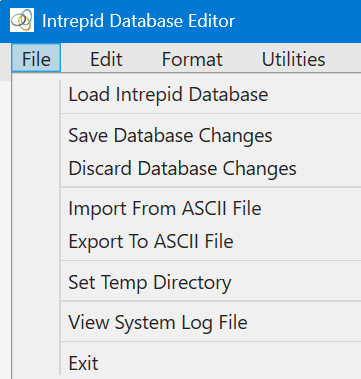
Use the File menu to load an Intrepid database into the editor. When a database is opened, the editor creates a temporary working copy of the database, and applies all edits to that copy, rather than to the user’s original database. At any time, the user can choose Save Database Changes to write the edits from the temporary working copy back to the original database. Alternatively, the user can choose Discard Database Changes to abandon the current edits. This deletes the temporary working copy and recreates it from the original database. In other words, any edits to the database cannot be undone one edit at a time. The user can only undo all edits since the last time the database was saved.
Use the File menu to launch the Import From ASCII File and Export To ASCII File tools. Users can import data into a new Intrepid database from ASCII files in ASEG-GDF2 format, a straight ASCII-columns format, or a Comma Separated Value (CSV) file. Data can be exported from an Intrepid database to the same three file types.
The default Temp directory is in a sub-directory of the install directory. Users can use Set Temp Directory menu item to reset the location of the Temp directory, and this will be saved for subsequent editor sessions. The Temp directory should preferably reside on a fast SSD drive.
Import From ASCII File Tool
Use the Import From ASCII File menu to import data from ASCII text files into a new database.
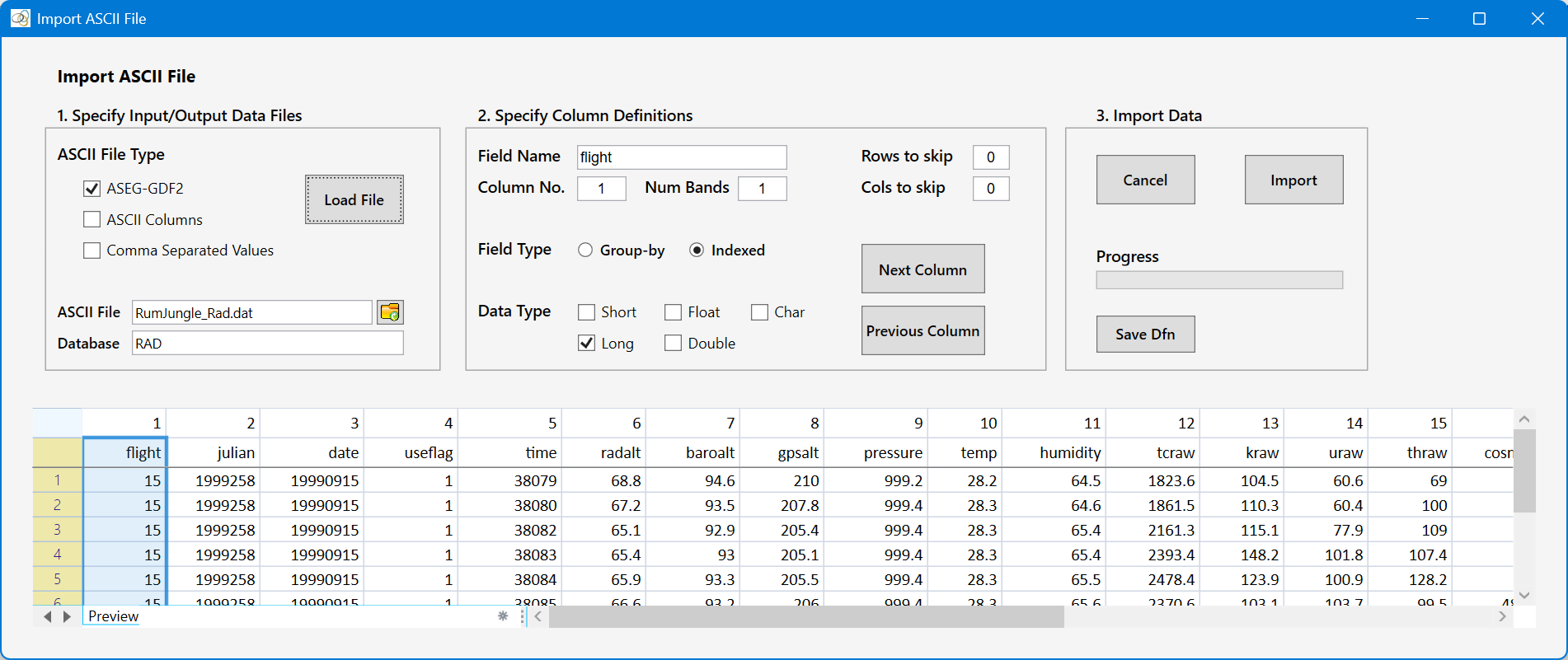
The Import From ASCII File tool imports data from an ASCII file into a new Intrepid database. Three input formats are supported:
1. ASEG-GDF2 files: a .dat data file accompanied by a .dfn file containing the column definitions.
2. ASCII column files: a plain text column-based file. The user must define the columns.
3. CSV files: a comma-separated values file. The user must define the columns.
To begin, select the ASCII File Type, choose the input file (for ASEG-GDF2 this is the .dat file), and enter a name for the new database. Then click Load. The first 10 rows of the file are displayed in the spreadsheet together with column headers. For ASEG-GDF2 files, the headers are read from the associated .dfn file. For the other file types, the file may include a comment row as the first row, and/or a header row containing the space-delimited field names. These will appear in the spreadsheet preview. IntrepidEditor should automatically detect column headers and use them as the field names for each column. In this case the Rows to skip box should also indicate the number of rows to skip on import before the actual data begins. If no column headers are detected, the editor will use the default field names field1, field2, and so on, which can then be edited by the user.
The user can then review and, if necessary, edit each column definition by:
1. Clicking the column in the spreadsheet (or clicking Next Column), and
2. Editing the Field Name, Num Bands, Field Type, and Data Type.
Field Type defines how the field will be stored in the database - either as a Group-by field (one data value for each group/line), or Indexed (one value for each sample). Data Type specifies whether the data is stored as integers (short or long), real numbers (float or double), or as character strings. Typically, survey number, flight number, line number, date, time, line type and raw spectra channels are stored as long (IEEE4ByteInteger). Temperature, pressure and altitude are stored as float (IEEE4ByteReal). Positional information (latitudes, longitudes, eastings, northings) should be stored as doubles (IEEE8ByteReal).
When you are happy with the column definitions, click Import to create the new database.
Important Note: At least one field in the input file must be specified as a group-by field. This would typically be the Line Number field. Any number of group-by fields can be specified. Typical group-by fields are Line Number, Line Type, Survey Number, Flight Number, and Date.
The current column definitions can also be saved to an ASEG-GDF2 .dfn file using the Save Dfn button. This is useful when importing additional ASCII files that have the same format.
See Tutorial 16: Importing Data for a tutorial on the use of this tool.
Export To ASCII File Tool
Use the Export To ASCII File menu item to export data from the current database to ASCII text files.
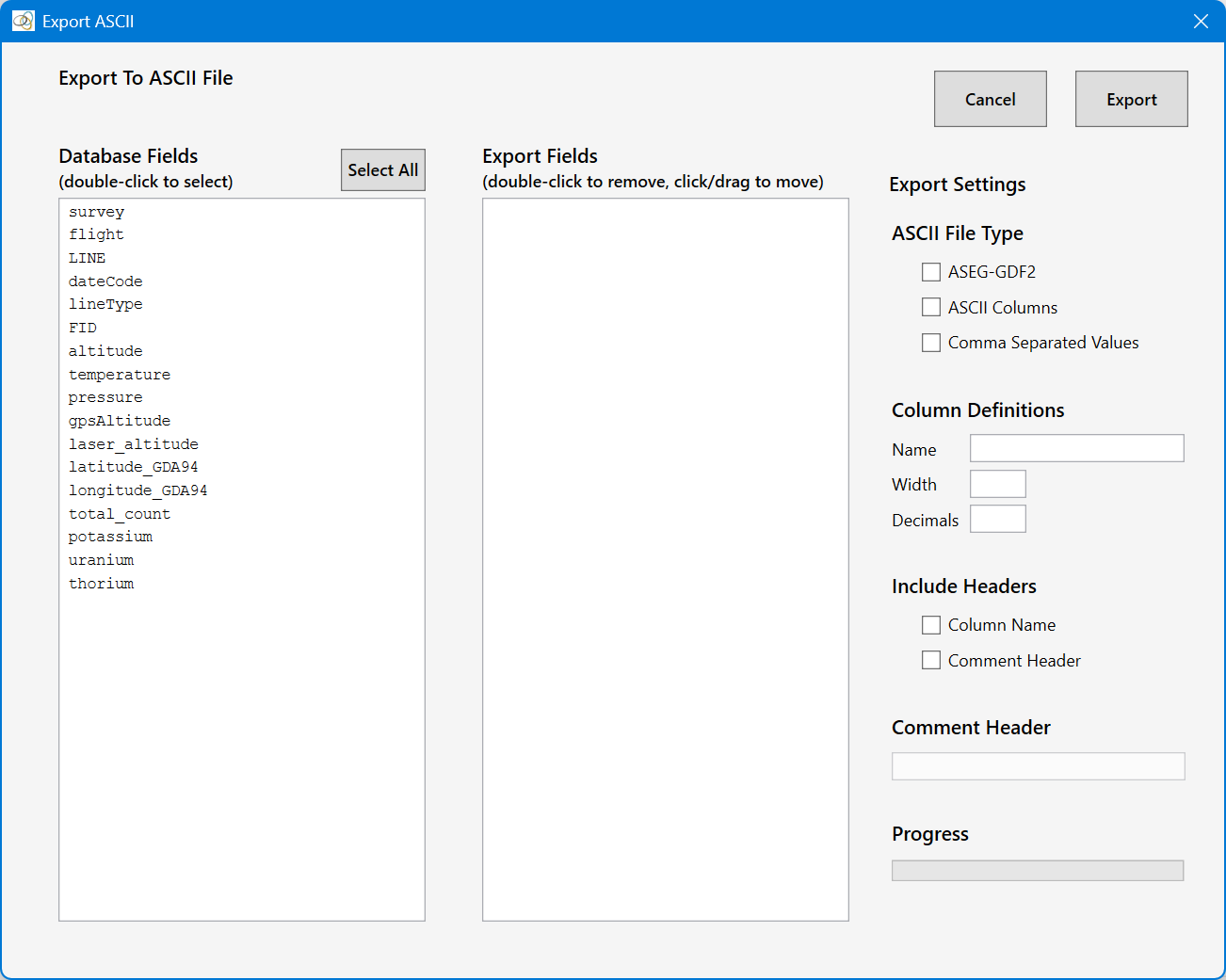
The Export To ASCII File tool exports data from the currently open Intrepid database to a new ASCII file. Three output formats are supported:
1. ASEG-GDF2 files: a .dat data file accompanied by a .dfn file containing the column definitions. The users must create and populate their own .des file.
2. ASCII column file: a plain text column-based file. A comment line can be included as a header. The field names can also be included as a Column Name header to the text file (column names separated by at least one blank space).
3. CSV file: a comma-separated values file. A comment line can be included as a header. The field names can be included as a Column Name header to the text file.
Double-click field names in the left-hand listbox to select fields for export. You can also use the left mouse button to click/hold/drag a field name in the Export Fields to a new position in the listbox.
For all three output file types, you can use the Decimals textbox to specify the output formatting. For ASEG-GDF2 and ASCII columns files you can use the Width textbox to specify the field width in the output file. If this width is insufficient to accommodate field data, it will be automatically increased by the editor.
See Tutorial 17: Exporting Data for a tutorial on the use of this tool.