Tutorial 17: Exporting Data
Tutorial 17: Exporting Data
Export To ASCII File
Use Intrepid Editor's Export to ASCII File menu to export data from the currently loaded Intrepid database to an ASCII file. The export tool supports 3 types of ASCII file formats for export:
- ASEG-GDF2: This is a space delimited ASCII columns file. The data will be in a file with a .dat extension, and this will be accompanied by a text file with a .dfn (or .def) extension which contains the definitions for the ASCII columns in the .dat file. For airborne magnetic and radiometric data the first 4 characters of each row of the .dat file will comprise the characters "DATA".
- ASCII Columns: This is also a space-delimited ASCII columns file, but without an accompanying .dfn file. However, the first two rows of the file might contain (a) a comment and/or (b) a row with the field names (space delimited) for the data columns. There can be no spaces in the field names.
- Comma Separated Values (CSV) file: This has a similar structure as the ASCII Columns file. However, the data fields and the column headers (if present) are separated by commas rather than spaces. That is, there are no spaces between the value and header strings in the file.
Export to an ASEG-GDF2 file
- Load an Intrepid database – File|Load Intrepid Database. Navigate to the "demo_data\airborne_spectrometry\import_export" folder and select the EXPORT_DEMO..DIR database. The Intrepid database will be loaded into the editor.
- Launch the Export To ASCII File tool – File|Export To ASCII File. The following window will appear.
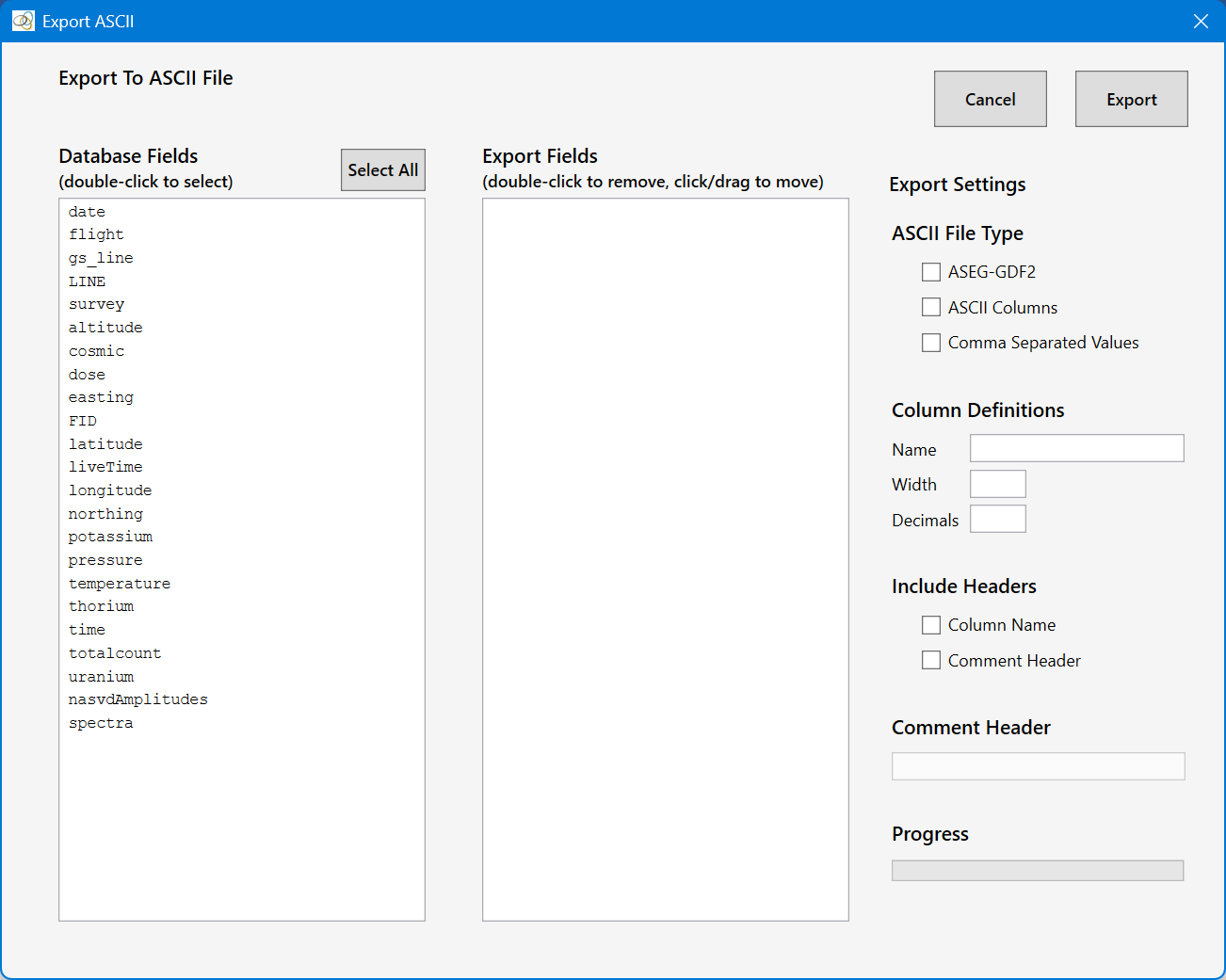
- Click the Select All button – This selects all the field in the Database Fields listbox for export. Double-click field names in the Export Fields listbox to remove them from the list. You can also drag and drop files within the list to change the column order in the output file. Click on the cosmic field to select it. The window should now look like this:
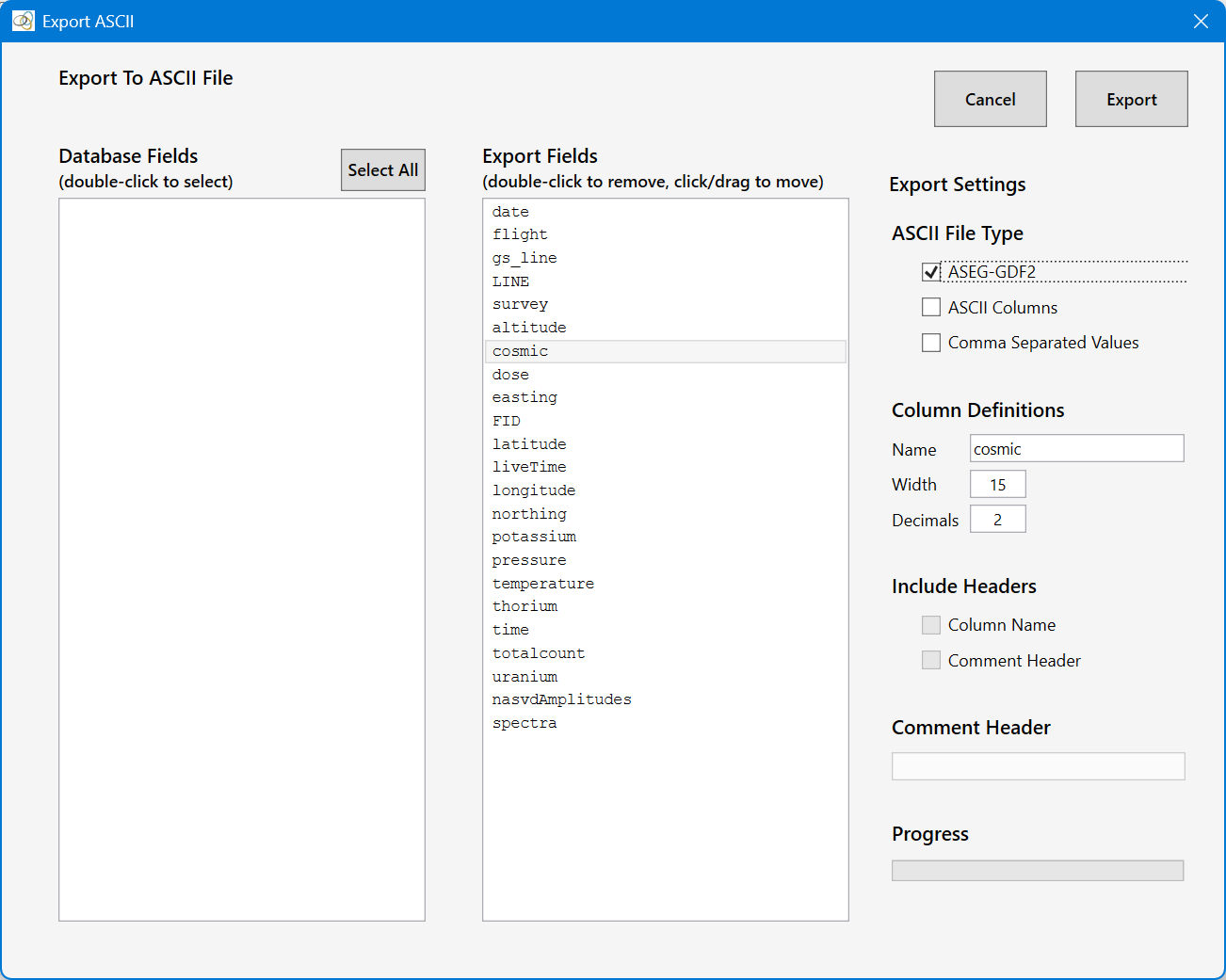
- Edit the the Column Definitions – By selecting each of the fields in turn, you can edit their Name, Width (of output in characters) and Decimals (number of decimal places to output).
- Click Apply – This will open a File Select dialog to select the output file and export the data.
Exporting to ASCII Columns or Comma Separated Values file follow the same process. However, for these file types the user can optionally include a Comment and/or Field Name headers.