Format Menu
Editor Format Menu
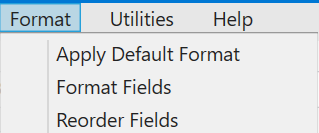
Use the Format menu to format the way the field columns appear in the spreadsheet.
Apply Default Format
Formats the columns as follows: columns are ordered with group-by fields appearing on the left, followed by indexed fields, with multi-band fields appearing on the right. Integer fields are rendered with no decimal point, float (single-precision real numbers) are rendered with 1 decimal place and double (double-precision real numbers) are rendered with 4 decimal places. The width of each field is set to accommodate the field name in the header.
Format Fields Tool
Launches a tool to facilitate the formatting of individual fields:
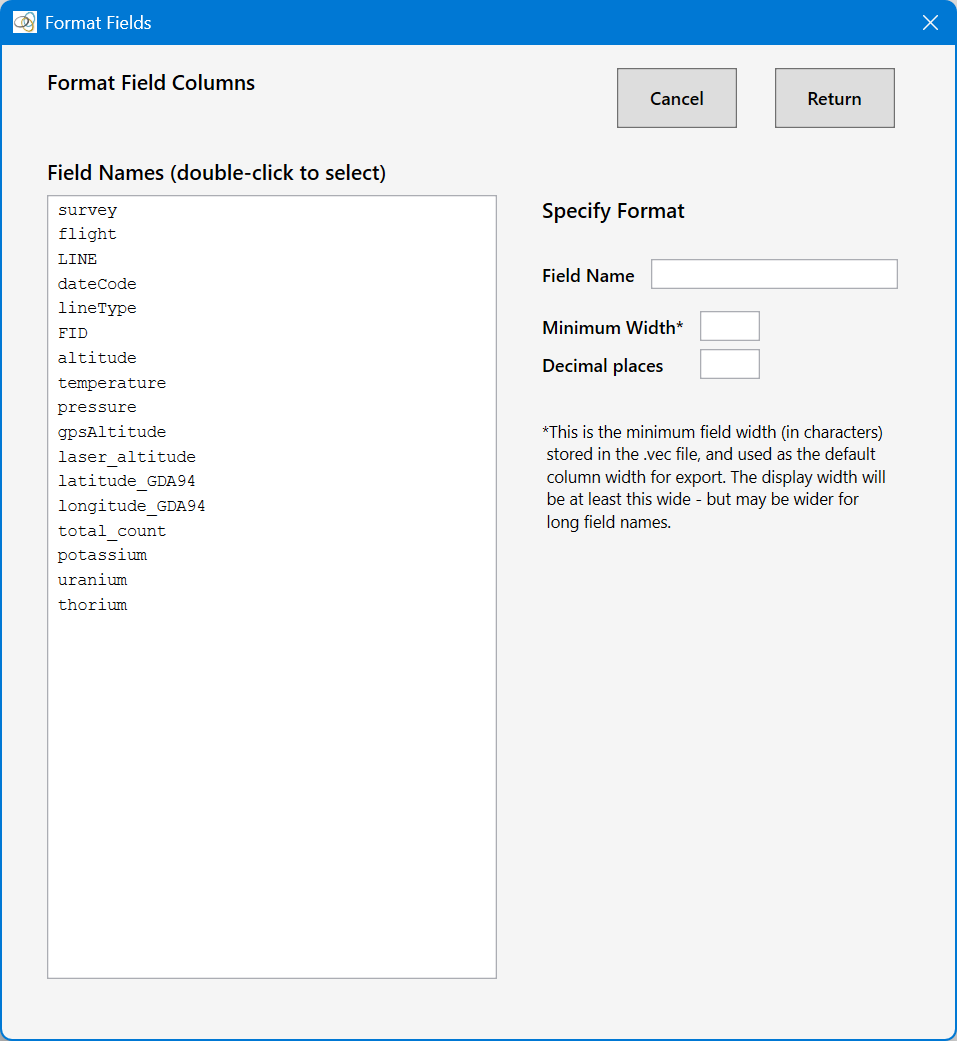
Double-click in the listbox to select a field, then specify its display width and number of decimal places for display and output (export). When the database changes are saved, the current field format information will be saved to the Intrepid field's .vec file. So the next time you open the database, the saved formatting will be applied. Note that the Minimum Width specified is actually the width that will be stored in the .vec metadata file, and is the width that will be used on export of the data. For the spreadsheet editor, the specified Minimum Width is the minimum display width (in characters) – the actual display width is the maximum of Minimum Width and the length of the field name in characters.
Reorder Fields Tool
Launches a tool to reorder the database fields in the spreadsheet editor:
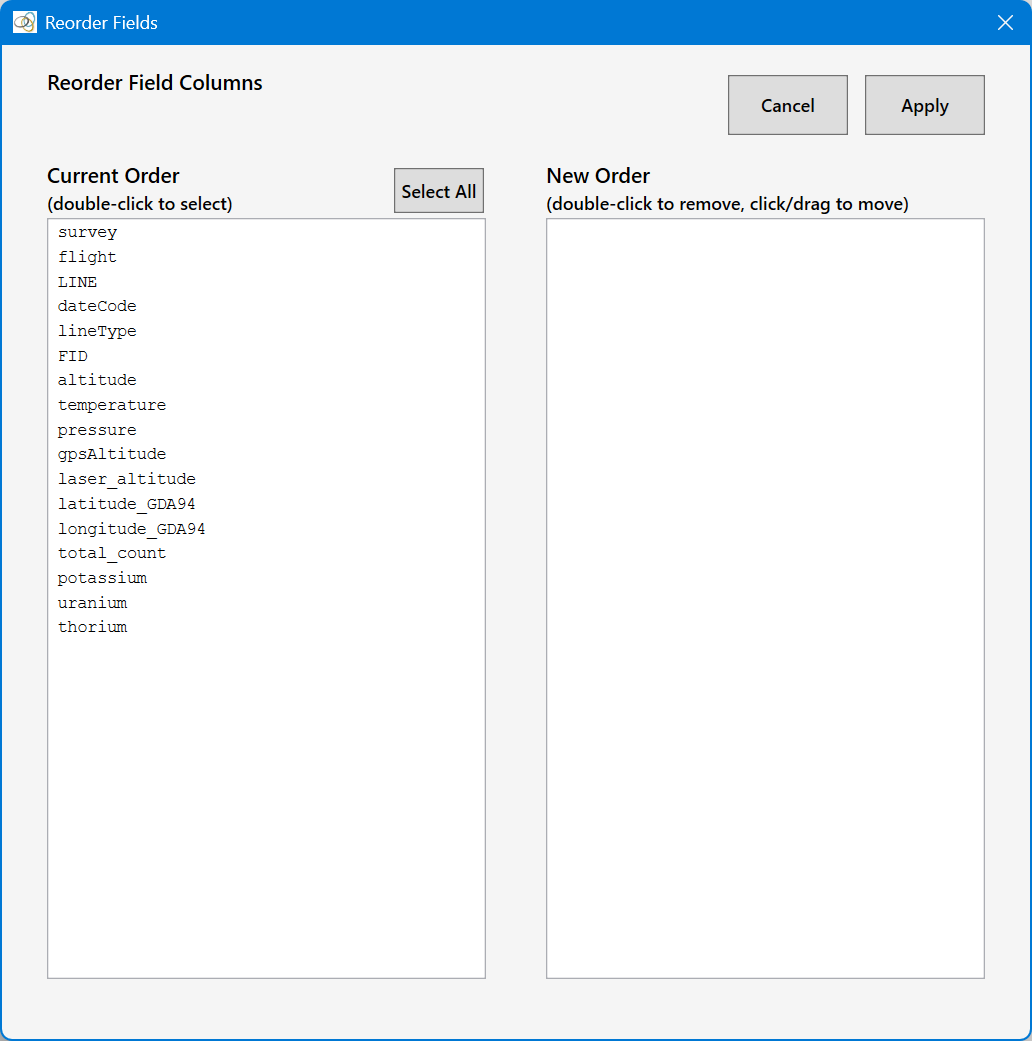
The new field order is from left to right across the spreadsheet. Double-click a field to select, and repeat as necessary. You don't have to select all the fields – once you have your preferred fields selected, click SelectAll, and the remaining fields in the Current Order list will be appended (in their current order) to the New Order list. Additionally, you can use the left mouse button to click/hold/drag a field name to a new position in the New Order listbox. Click Apply when you are satisfied with the new order.