The MicroLevel User Interface
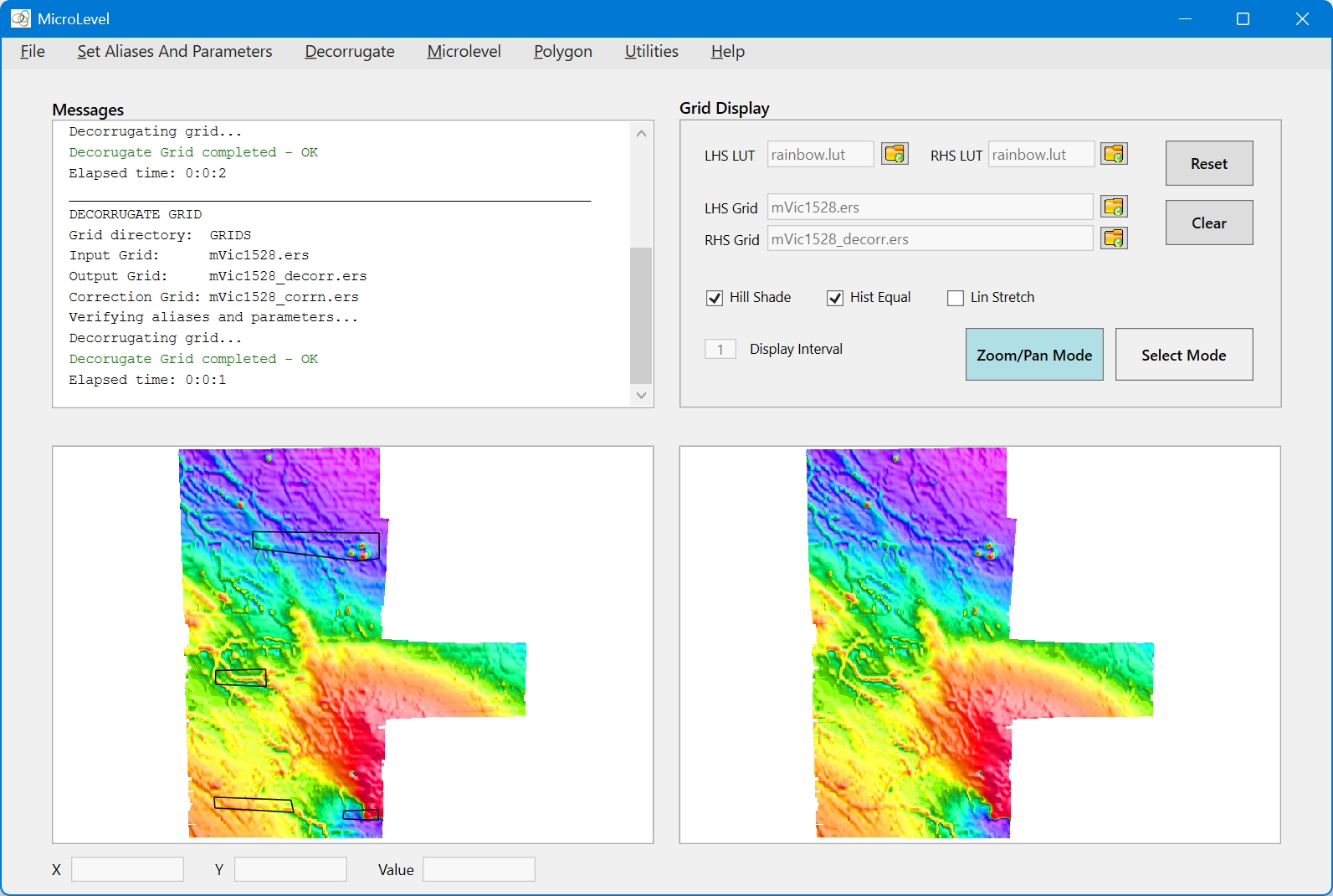
The MicroLevel User Interface is also referred to as the “Main Window”. All MicroLevel tools are launched from the Main Window. It is also used to view and compare grids. The Main Window is re-sizeable, and the images within the two image panels have zoom and pan capability. However, the images must be exactly the same size. In this case, the two images will zoom and pan synchronously.
Main Window Features
- Menu Bar: This is used for setting the working directory, viewing log files, setting aliases and control parameters, launching processes and tools, and seeking help. Subsequent sections in this User Guide will describe the functions of the menu items.
- Messages: This list box displays messages to the user on processing progress, warnings or errors.
- Grid Display: Used for loading grids to the display panels, selecting look-up tables and display parameters, and selecting the display mode. The "Display Interval" text box displays the current sub-sampling of grids in the grid display panels. The Grid Display buttons have the following functions:
- Reset: Resets the pan and zoom of the panel displays to their initial values.
- Clear: Clears the grid display panels.
- Zoom/Pan Mode: Sets the display mode to Zoom/Pan – the mouse scroll wheel is used to zoom about the current cursor position, and dragging with the left mouse button will pan.
- Select Mode: Sets the display mode to Select – in this mode if a grid cell is selected, the value is displayed in the "Value" text box.
- Display Panels: There are two identical display panels (LHS – left-hand side and RHS – right-hand side) to display and compare grids. A single grid can be loaded into either panel for inspection. However, if two grids are loaded, then they must have identical extents – i.e. origins, cell sizes and number of rows/columns. In this case, zooming and panning on either panel will result in both panels being zoomed/panned synchronously.